
Download Hacha – Free File Splitter & Joiner for Windows, Mac, Android & iOS
Looking for a simple, secure, and fast way to split and join large files? Hacha is a lightweight, no-installation file splitter and joiner tool that works seamlessly across Windows, Mac, Android, and iOS. Whether you're transferring a 10GB video to a USB drive or sharing a massive archive via email, Hacha helps you break files into smaller, manageable parts and reassemble them effortlessly.
With just two intuitive buttons—Split and Join—this minimalistic software delivers powerful functionality without complexity. No configuration, no clutter, no bloatware. Perfect for users who value speed, privacy, and simplicity.
Download Hacha today and simplify your file management tasks with a free, reliable, and cross-platform solution.
Simple Yet Powerful: The Core Features of Hacha
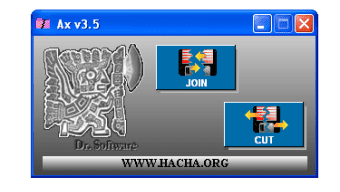
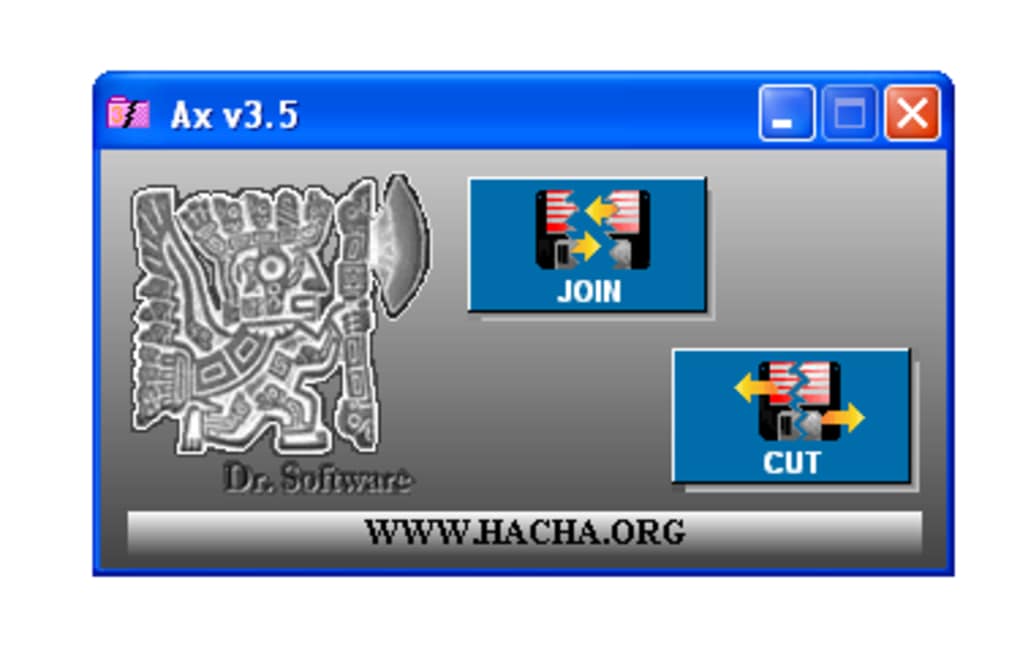
At its heart, Hacha is built around one goal: to make file splitting and joining as easy as possible. Unlike bulky archiving tools that come with dozens of settings and confusing menus, Hacha strips everything down to the essentials. The interface is so clean it almost feels like a digital utility knife—minimal, precise, and effective. Just open the app, click “Split,” choose your file, set the desired part size (in MB or KB), and let it work. When you're ready to reassemble, simply use the “Join” function, and Hacha will automatically detect and merge all the parts back into the original file.
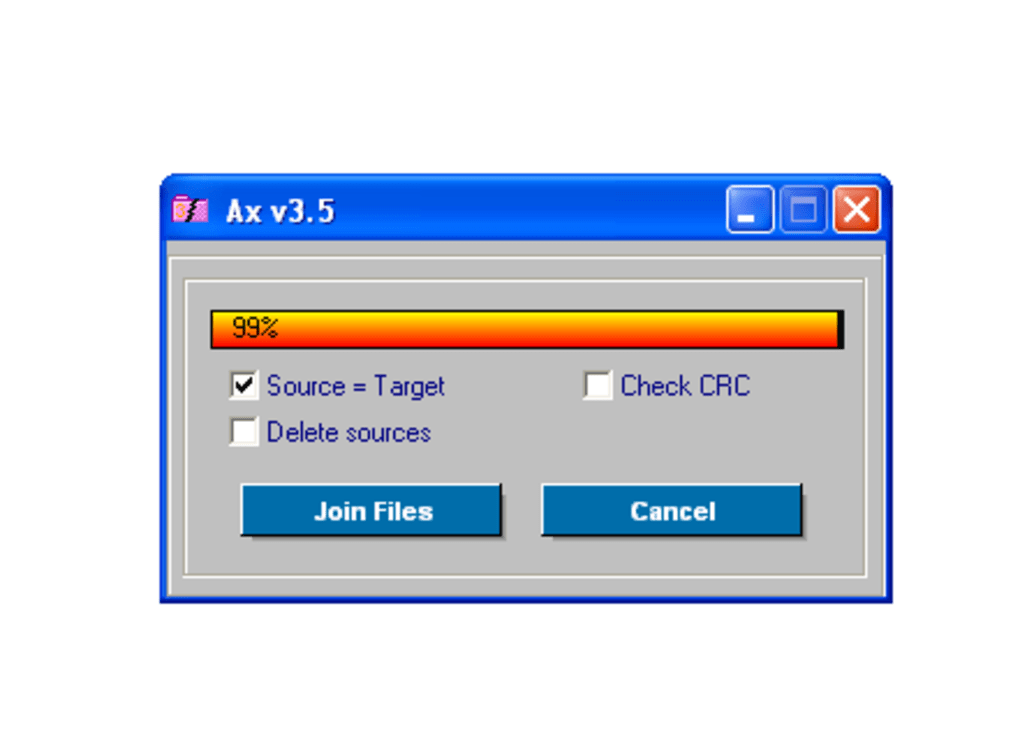
One of Hacha’s standout features is its speed and efficiency. It leverages optimized algorithms to process large files quickly, making it ideal for users dealing with high-resolution videos, software installers, or backups. The tool also supports CRC checksum generation, which ensures data integrity during the splitting and joining process. This means you can verify that no data was lost or corrupted during transfer—critical for sensitive files. Additionally, Hacha gives you the option to automatically delete the original file after splitting, helping save space and maintain privacy.
Despite its simplicity, Hacha doesn’t compromise on functionality. It works on Windows 7 and above, macOS 10.12+, Android 5.0+, and iOS 12+, making it one of the few tools that truly offers cross-platform compatibility. Whether you're splitting a file on your desktop and joining it on your phone, or transferring files between devices, Hacha keeps things consistent. The lack of installation means it’s portable—perfect for use on public computers or shared workstations. For users who value both performance and privacy, Hacha is a rare gem in the world of file utilities.
How to Use Hacha: Installation & Step-by-Step Guide
One of the biggest advantages of Hacha is that it’s completely portable and requires no installation. This makes it incredibly convenient for users who want to use the tool on multiple devices without leaving traces or modifying system settings. To get started, visit the official Hacha website and download the appropriate version for your operating system—whether you're on Windows, Mac, Android, or iOS. The download is free, secure, and virus-free, with no bundled ads or third-party software.
Once downloaded, simply extract the file (if needed) and launch the application. On Windows, you’ll typically find a .exe file; on Mac, a .app bundle. For Android and iOS, you’ll need to download the mobile app from the respective app stores. The interface is instantly recognizable: two large buttons labeled “Split” and “Join.” Click “Split,” browse to the file you want to divide, and enter the desired size for each part—such as 500MB or 1GB. You can also enable options like CRC checksum creation and automatic deletion of the original file.
After splitting, Hacha generates a series of numbered files (e.g., filename.part001, filename.part002). These can be safely transferred via USB, cloud storage, or email. To reassemble, open Hacha again, click “Join,” and select any one of the part files.
The tool will automatically detect the rest and merge them into the original file. The entire process is intuitive, fast, and error-resistant. There’s no need to remember file order or manually manage sequences—Hacha handles it all behind the scenes.
This makes it ideal for both beginners and advanced users who want a no-fuss solution.
Compatibility & System Requirements: Works Everywhere
One of the most impressive aspects of Hacha is its cross-platform compatibility. Unlike many file tools that are limited to one operating system, Hacha runs smoothly on Windows, Mac, Android, and iOS, making it a true universal solution. Whether you're working on a desktop, laptop, tablet, or smartphone, you can split a file on one device and join it on another without any hassle.
For Windows, Hacha supports all major versions from Windows 7 onward. On macOS, it’s compatible with versions 10.12 and above, including the latest Apple Silicon Macs. The mobile versions are available on the Google Play Store and Apple App Store, with regular updates to ensure security and performance. All versions are lightweight, consuming minimal RAM and CPU resources, so they won’t slow down your device.
Despite its broad reach, Hacha maintains a consistent user experience across platforms. The interface remains clean and functional, and the core features—splitting by size, joining automatically, and generating CRC—are available everywhere. This makes it perfect for users who frequently switch between devices or collaborate with others using different systems. Plus, since it doesn’t require installation, you can carry Hacha on a USB drive and use it on any computer without leaving a footprint. For anyone who needs a reliable, secure, and free file splitter, Hacha is a top choice.
Pros and Cons: Is Hacha Right for You?
- Pros:
- Free and secure file splitting & joining tool
- No installation required – fully portable
- Fast processing with minimal system impact
- Supports cross-platform use (Windows, Mac, Android, iOS)
- Auto-detects and joins split files without manual input
- Generates CRC checksums for data integrity
- Option to delete original file after splitting
- Simple, clean interface with no distractions
- Cons:
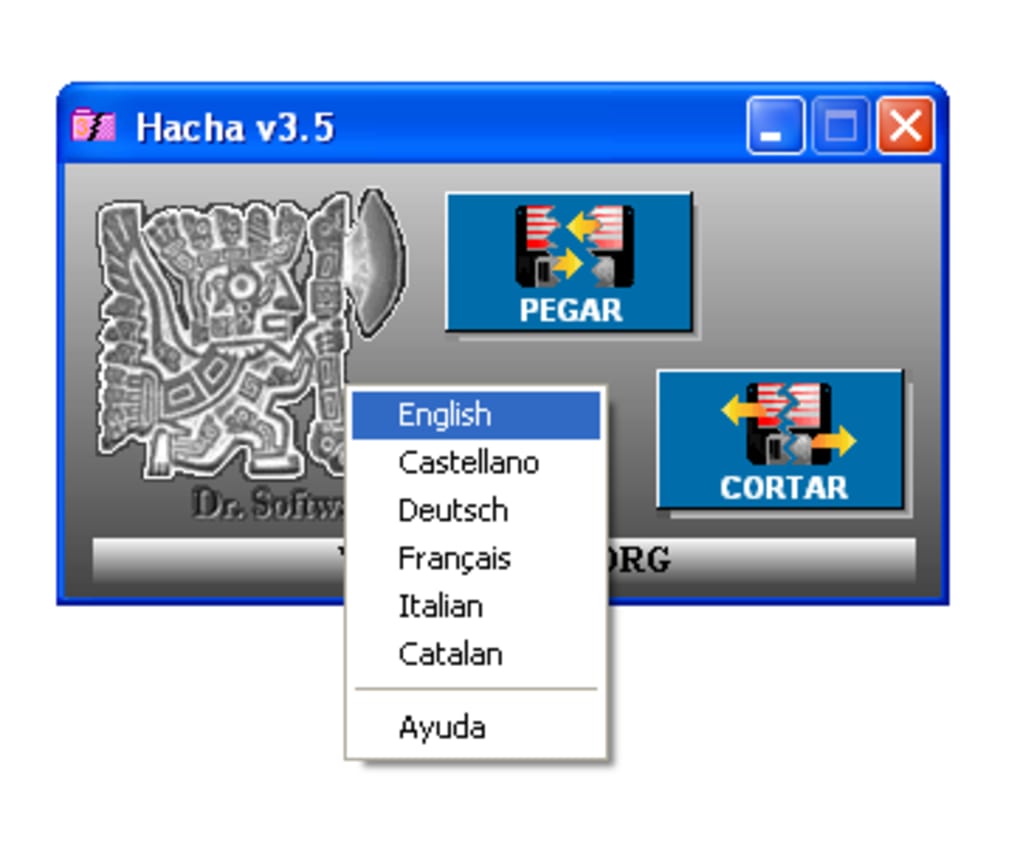
- Language switching is unintuitive (requires right-click)
- Spanish-only interface in some versions (translation needs improvement)
- No option to set the number of parts—only file size
- Limited customization compared to advanced archivers
- Mobile versions may lack some desktop features
Frequently Asked Questions (FAQ)
Can I use Hacha to split files larger than 10GB?
Yes, Hacha can handle files of any size, including those larger than 10GB. It processes files in chunks, so memory usage remains low. The only limitation is your storage space and the size of the destination media (like a USB stick).
Is Hacha safe to download and use?
Absolutely. Hacha is a free, open-source tool available only from its official website. It has no malware, ads, or bundled software. Always download from the official source to ensure security.
Can I join files on a different device than where I split them?
Yes, Hacha is designed for cross-platform use. Split a file on your Windows PC, transfer the parts to your Android phone, and join them there. The tool automatically detects the sequence and reassembles the file correctly.
Does Hacha support password protection?
No, Hacha does not offer encryption or password protection. It focuses solely on splitting and joining files. If you need secure file transfer, consider pairing it with encrypted cloud storage or a password-protected archive tool.
How do I change the language to English?
The language switch is not obvious. Right-click on the Hacha interface and select your preferred language from the context menu. Note that some parts may still be in Spanish, as the translation is not fully complete.
Final Verdict: A Must-Have Tool for File Management
If you're tired of dealing with file size limitations when transferring data, Hacha is the perfect solution. With its lightweight design, fast performance, and cross-platform support, it stands out as one of the most reliable free file splitters available. While it lacks advanced features like encryption or customizable part counts, its simplicity is its greatest strength. It does one thing—split and join files—and it does it exceptionally well.
Whether you're a student, professional, or casual user, Hacha simplifies complex file management tasks without overwhelming you. It’s secure, portable, and easy to use—no learning curve required. The fact that it’s free and available on Windows, Mac, Android, and iOS makes it a truly accessible tool for everyone.
Download Hacha today and take control of your file transfers. Try it now and experience the power of simplicity in file management.







